


On this page
Read summarized version with
An ecommerce SEO checklist covers four jobs. Let Google crawl and index your store, give every product and category page its own title, description and text, link your catalog together, and keep pages fast on phones. Shopify handles more of the technical setup by default. On WooCommerce, WordPress covers part of it and an SEO plugin usually adds the rest.
The 12 tasks below come from Google Search Central and the Shopify, WordPress and WooCommerce docs, checked on November 1, 2026. Each task says where to find it on both platforms.
Ecommerce SEO checklist at a glance
The table lists each task and where you do it. Shopify paths start in the Shopify admin. WooCommerce paths start in the WordPress dashboard.
| # | Task | Where in Shopify | Where in WooCommerce |
|---|---|---|---|
| 1 | Open the store to search engines | Turn off private mode before launch; SSL is on by default | Settings > Reading: leave "Discourage search engines" clear; serve the site over HTTPS |
| 2 | Verify in Search Console and submit a sitemap | sitemap.xml is generated for you | /wp-sitemap.xml (WordPress 5.5 and later) or your SEO plugin's sitemap |
| 3 | Unique page titles | Product > Search engine listing > Page title | Product name by default; an SEO plugin adds a separate SEO title |
| 4 | Meta descriptions | Product > Search engine listing > Meta description | No field by default; an SEO plugin adds one |
| 5 | Your own product descriptions | Product description | Product description |
| 6 | Image alt text and file names | Click the product image > Edit alt text | Media > Library > Alternate text |
| 7 | Short, stable URLs | Search engine listing > URL handle | Settings > Permalinks > Product permalinks |
| 8 | Redirects for removed or renamed pages | Content > Menus > View URL Redirects | A redirect plugin, such as Redirection |
| 9 | Link every product from a category | Products > Collections | Products > Categories |
| 10 | Filter and sort URLs | Blocked by the default robots.txt | Depends on your theme and filter plugin |
| 11 | Product structured data | Built into Shopify themes | Generated by WooCommerce; SEO plugins can add more |
| 12 | Speed on phones | Analytics > Reports (web performance) | Hosting, caching and image sizes |
12 SEO tasks for Shopify and WooCommerce stores
The tasks run in order. First make sure Google can reach the store, then fix each page, then the links between pages, then speed. On a new store, work through them from the top.
If you are still choosing a platform, our Shopify vs WooCommerce comparison covers SEO next to costs and fees. SEO is one part of a wider plan, which our ecommerce growth strategy sets out quarter by quarter.
1. Open your store to search engines
A store that tells search engines to stay away cannot rank, so check this before anything else. Both platforms have a switch that hides a store while you build it.
On Shopify, Google can't read your sitemap while the store is in private mode, according to the Shopify Help Center. Turn private mode off when you launch. SSL is on by default, so your pages load over HTTPS.
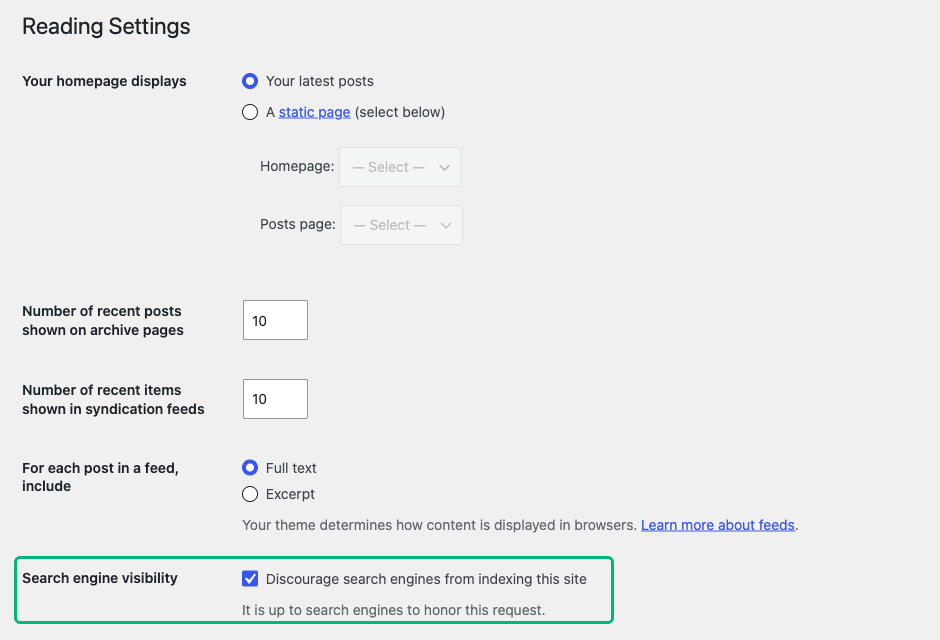
On WooCommerce, go to Settings > Reading and find Search engine visibility. If Discourage search engines from indexing this site is checked, WordPress adds a noindex, nofollow tag to every page. The box is useful on a staging copy. On your live store, leave it clear.
Serve the store over HTTPS too. Google's page experience guide asks whether pages are "served in a secure fashion", and WooCommerce recommends HTTPS.
2. Verify your store in Search Console and submit your sitemap
Google Search Console shows which of your pages Google has indexed, which ones it couldn't, and which searches bring visitors. It is free. Per Google's getting-started guide, you verify that you own the site, check the indexing report, and can submit a sitemap.
A sitemap lists the URLs you want Google to find. Google calls submitting one "merely a hint", but it may speed up discovery of new products.
Shopify generates sitemap.xml at the root of your domain. It lists products, their main images, pages, collections and blog posts. Verify your domain in Search Console, open Sitemaps, and enter sitemap.xml.
WordPress 5.5 and later builds a sitemap index at /wp-sitemap.xml for public content types. If you use an SEO plugin, submit the sitemap URL the plugin gives you instead.
3. Write a unique title for every product and category page
The page title is the link people see in Google, and Google says it is often what they use to decide which result to click. Google's guide to title links asks for titles that are descriptive, concise and different on every page. It gives a store example to avoid: every page titled "Cheap products for sale".
Name the product, the key attribute and your brand, in that order: "Merino wool beanie in charcoal | Northfield Knits". Don't repeat the same keyword three ways. Google warns that keyword stuffing can make results "look spammy".
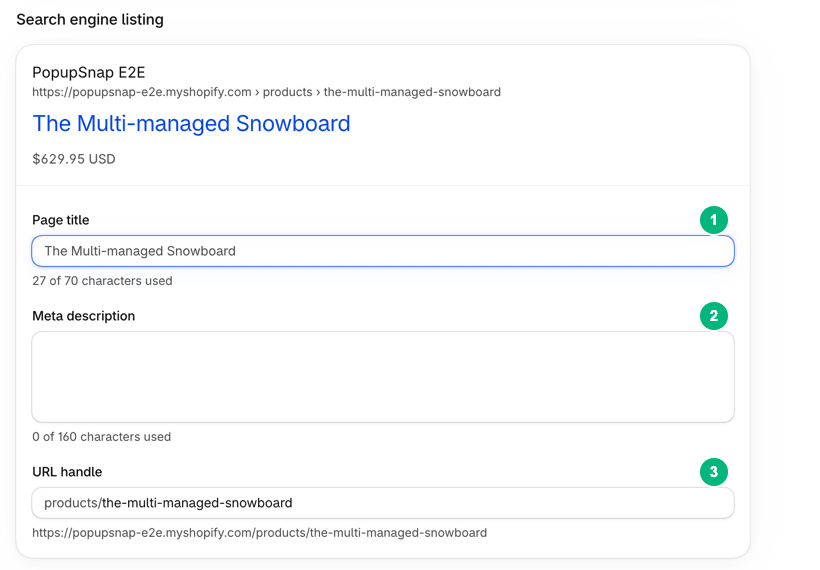
On Shopify, open the product under Products, click the pencil icon in the Search engine listing section, and edit Page title. Shopify warns that titles over 70 characters may be cut off in results.
On WooCommerce, the product name becomes the page title. To write a separate SEO title, you need an SEO plugin.
4. Write meta descriptions for your key pages
A meta description is a one- or two-sentence summary of a page that Google may show under the title. Google builds most snippets from the page text and uses your meta description when it describes the page better.
Google's snippet guidelines ask for a unique description on each page. For a product, bring the facts together: what it is, the material, the price. If you can't write them all, start with the home page and your best sellers.
On Shopify, use the Meta description field in the same Search engine listing section. Set the home page's title and description under Online Store > Preferences.
On WooCommerce, there is no meta description field by default: WordPress's SEO documentation says meta tags are not included. An SEO plugin adds the field. Yoast SEO, Rank Math and All in One SEO are three in the WordPress.org plugin directory.
5. Write your own product descriptions
Original product text is the item no platform can do for you. Google's SEO Starter Guide asks for unique content: "don't copy others' content in part or in its entirety". Many stores selling the same product use the supplier's description, so it gives Google little reason to prefer your page.
Google's spam policies name the extreme case: affiliate pages that copy the original merchant's product descriptions, with nothing added, count as thin affiliation. Your fix is to add what only you know.
Answer the questions a customer asks before buying: who it is for, size and fit, materials, care, and what is in the box. Our product description examples by product type show what to cover for each product type.
AI drafts are fine as a start. Google's spam policies flag generating many pages with AI "without adding value for users", so edit each draft before you publish it.
For a first draft, enter your product details into Grovlix's free AI product description generator. Then edit the result with what you know about the product.
6. Give every product image alt text and a clear file name
Alt text is a short description of an image. Google's image guidelines call it the most important attribute for image metadata. Google reads it together with the page to understand what the image shows, and screen readers read it aloud to people who can't see the image.
Describe the photo in plain words: "Black leather tote bag with brass zip, front view". Don't fill it with keywords. Name the file before you upload it, too. Google prefers short, descriptive names, such as black-leather-tote-front.jpg, over names like IMG00023.JPG.
On Shopify, open the product, click the image, then Edit alt text, and click Save alt text. On WooCommerce, open the image in Media > Library and fill in Alternate text.
7. Keep product URLs short, readable and stable
A good product URL contains words, not only numbers. Google's ecommerce URL guide prefers /product/black-t-shirt-with-a-white-collar to /product/3243. It also says stores on a platform can mostly skip URL design. Keywords in a URL alone have hardly any ranking effect, Google adds.
Stability matters more than wording. On Shopify, the URL handle is generated when you create the product. Shopify says you can edit it, but not too often, or the product might not display in search results.
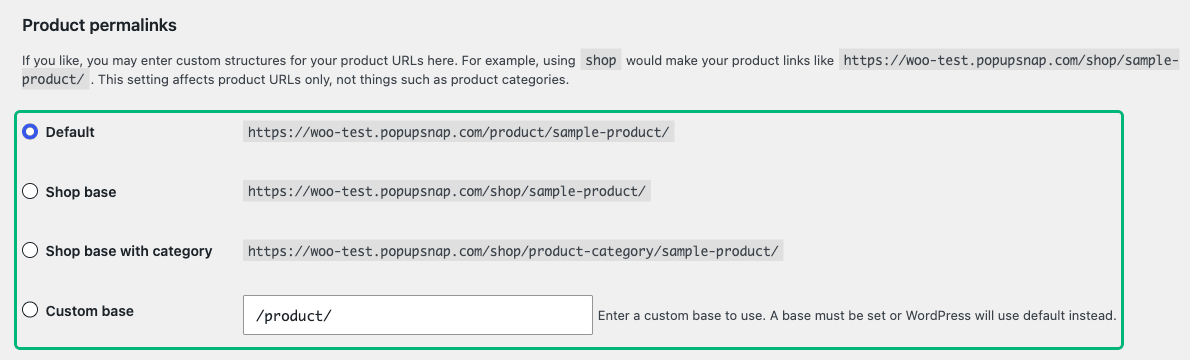
On WooCommerce, the URL pattern for all products is under Settings > Permalinks > Product permalinks. You can choose a base such as /product/ or /shop/, or a custom one. Choose once, before launch. The WooCommerce permalinks guide warns that changing it moves every existing product URL, and old links return 404 errors unless you add redirects.
8. Redirect old URLs when you remove or rename products
When a product URL changes or disappears, send visitors and Google to the closest page that still exists. A permanent redirect (HTTP 301 or 308) tells Google to show the new page in results, per Google's redirects guide. Shopify's own example sends a deleted product's URL to a similar product.
On Shopify, go to Content > Menus > View URL Redirects, then click Create URL redirect. Enter the old path in Redirect from and the new one in Redirect to, then click Save redirect. Shopify redirects work only on broken URLs, such as a deleted product or one removed from all sales channels.
On WooCommerce, use a redirect plugin. Redirection, from the WordPress.org plugin directory, manages 301 redirects and logs 404 errors, so you can see which old links people still use.
9. Link every product from a category page
Google finds products by following links, so every product needs a path from your menu. Google's ecommerce site structure guide recommends links from menus to categories, and from categories to products. Googlebot generally doesn't type into your search box, so a product reachable only by search may never be found.
Internal links also signal importance. As a general rule, the more links a page gets from inside your site, the more important it is relative to your other pages. Link your best sellers from the home page and from blog posts.
On Shopify, group products into collections under Products > Collections, and add each collection to a menu. Give every collection a short description. On WooCommerce, set categories under Products > Categories. Some themes show the category description on the category page.
10. Keep filter and sort pages out of Google's crawl
Filters for size, color and price can create a very large number of URLs for one category page. Google's faceted navigation guide warns that crawlers then spend time on those URLs instead of your new products. Its main fix is to block filter parameters in robots.txt and keep one unfiltered listing page crawlable.
On Shopify, the default robots.txt already blocks filtered and sorted collection URLs, and Shopify says it works for most stores. Leave it alone unless you know why you are changing it: Shopify warns that a wrong edit can cost you all your search traffic.
On WooCommerce, the filter URLs depend on your theme and filter plugin. Open a filtered category page and look at the address. If filters add parameters such as ?color= to the URL, ask your developer to block them in robots.txt.
11. Add product structured data and test it
Structured data is code that tells Google a page's price, availability, rating and shipping details in a fixed format. Google's product structured data guide says it can show those details right in search results. It isn't required to rank, but it helps Google read the page.
You rarely have to write it. Shopify builds structured data into its themes. WooCommerce generates product structured data by itself, and SEO plugins such as Rank Math add more types.
Check it anyway. Paste a product URL into Google's Rich Results Test and fix any errors it lists. Then watch the rich result reports in Search Console after each theme change. To appear in Google's Shopping tab, you also need a Google Merchant Center account.
12. Make product pages fast on phones
Google indexes and ranks the mobile version of your store, so test speed on a phone first. Google's ranking systems use Core Web Vitals, three measures of real visits. Per Google's Core Web Vitals guide, aim for these targets.
- Largest Contentful Paint (loading): within 2.5 seconds.
- Interaction to Next Paint (response to taps): under 200 milliseconds.
- Cumulative Layout Shift (visual stability): under 0.1.
Google adds that good scores alone don't guarantee a top ranking. Test any page with PageSpeed Insights.
On Shopify, find the web performance reports under Analytics > Reports. Shopify's advice: use an up-to-date theme, remove apps that aren't needed for sales, and size images properly.
On WooCommerce, speed depends on hosting, caching and images. Use a caching plugin, but exclude the cart, checkout and My account pages, as WooCommerce's caching guide explains.
Write product descriptions that are yours
Product text is the one item on this list that no platform does for you. Grovlix's free AI product description generator turns your product name, keywords and features into a first draft. Edit it with your own knowledge of the product before you publish it. Draft a product description.
Grovlix, the publisher of this blog, makes apps for online stores. They run on Salla and Zid, and InstaFeed also runs on WooCommerce and any website. Our Shopify apps are in progress and none is listed yet.
Frequently asked questions
Is Shopify good for SEO?
Yes, for the technical basics. According to the Shopify Help Center, Shopify adds canonical tags and generates sitemap.xml and robots.txt files. Its themes build title tags and include structured data, and SSL is on by default. You still write the page titles, meta descriptions, product text and alt text, and you keep the store fast. Those parts decide how well each page can rank.
Do I need an SEO plugin for WooCommerce?
You don't need one for Google to index your store, but without code you need one to add meta descriptions. WordPress already adds canonical tags to single pages and builds a sitemap, and WooCommerce generates product structured data. What WordPress lacks by default is a meta description field. An SEO plugin such as Yoast SEO, Rank Math or All in One SEO adds it, plus SEO titles and sitemap settings.
How long does ecommerce SEO take to work?
Expect weeks to months. Google's SEO Starter Guide says some changes take effect in a few hours and others take several months, and suggests waiting a few weeks before you judge a change. Check the Performance report in Search Console about once a month. Be wary of anyone who promises a top ranking: Google says no one can guarantee a number one spot.
Does Google still use meta keywords?
No. Google's SEO Starter Guide says Google Search doesn't use the keywords meta tag, so filling it in does nothing for your Google rankings. Spend that time on page titles, meta descriptions and product text instead. Don't repeat keywords to make up for it either: Google calls excessive repetition keyword stuffing, and it is against Google's spam policies.
How long should a meta description be?
Google sets no length limit, but it shortens snippets to fit the screen. Shopify's help center warns that a description over 320 characters may be cut off in results. Write one or two sentences that summarize the page and put the most useful facts first, such as the product, the material and the price. That way, the important part survives when the snippet is shortened.
Amira Saad is a SaaS and AI product designer at Grovlix, where she works on the UX, UI and conversion rate optimization of PopupSnap, InstaFeed and PopAutomate. She writes about what makes online stores convert, from product pages to social proof.