


Selling channels
WhatsApp for ecommerce: setup, opt-in rules and message types
On this page
Read summarized version with
WhatsApp for e-commerce means using WhatsApp to talk to customers about products, orders and support. You can start with a free click-to-chat link, add the WhatsApp Business app, and move to the WhatsApp Business Platform when you need automated messages. Whatever you use, you may message only people who opted in. On the Business Platform, you may also start a conversation only with an approved message template.
This guide covers setup for Shopify and WooCommerce, Meta's opt-in rules with dates, and the four message types.
What can you use WhatsApp for in an online store?
Stores use WhatsApp for four jobs: answering product questions before a sale, confirming orders, sending order updates, and handling support after delivery. Meta's platform pricing page lists marketing messages that include offers, product suggestions and cart reminders.
Each job maps to a message type with different rules, which is why the types matter more than the app you pick. If your store also needs better product pages before customers ask questions, see Grovlix's guide to e-commerce growth basics.
Which WhatsApp option does an online store need?
Start with a click-to-chat link, add the Business app for a profile and away messages, and use the Business Platform only for automated messages. The three options differ in who sends the first message and how much setup they need.
| Option | What it is | Best for |
|---|---|---|
| Click-to-chat link | A wa.me link that opens a chat with your number |
A contact button, social bios, QR codes |
| WhatsApp Business app | An app for small business owners with a business profile, product showcase, greetings and away messages | Answering customers one by one |
| WhatsApp Business Platform | Meta's messaging platform with templates, message categories and per-message pricing | Order updates and reminders sent automatically |
The Platform is the only option where the template and pricing rules below apply to what you send. Meta describes the Business app on its WhatsApp Business app page as built with the small business owner in mind.
How do you set up a WhatsApp link on Shopify and WooCommerce?
Build a wa.me link with your full international number, then put it in a menu or button. Customers tap it and a chat opens with your number.
Before you start, have these ready:
- A phone number that has WhatsApp or the WhatsApp Business app installed.
- That number in international format: country code first, with no zero, brackets, dashes or + sign.
- Access to your Shopify admin or WordPress dashboard.
- On WordPress, whether your theme is a classic theme or a block theme.
WhatsApp's click to chat help page gives the format. Use the full phone number in international format and omit any zeroes, brackets or dashes. To pre-fill a message, add ?text= and the URL-encoded text:
https://wa.me/15551234567?text=Hello%20I%20have%20a%20question%20about%20my%20order
The pre-filled text appears in the chat box. The customer still has to tap send.
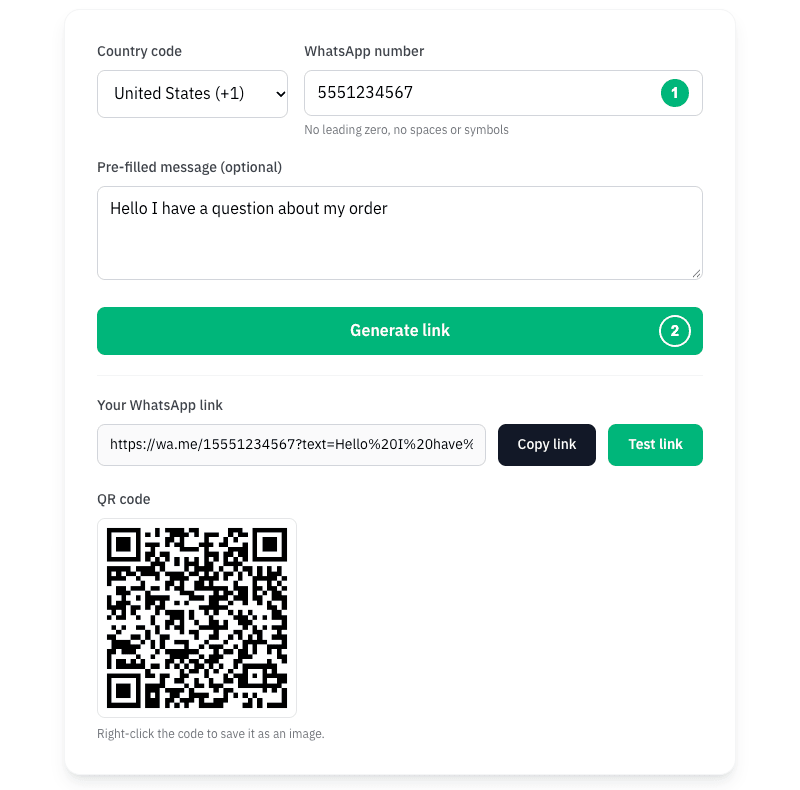
To build the link without typing the format by hand, use Grovlix's free WhatsApp link generator. It runs in your browser and also returns a QR code.
Shopify
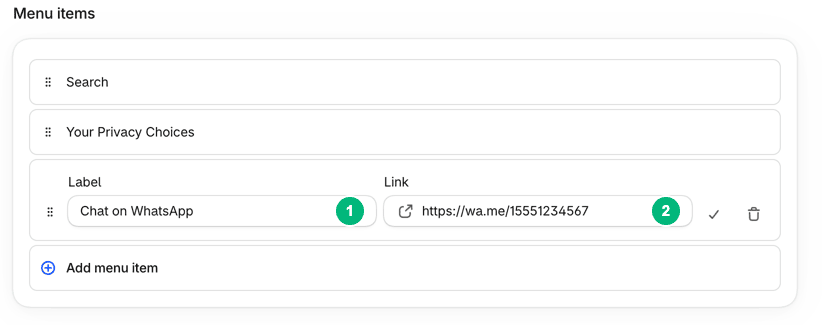
Per Shopify's menu help page, you add the link as a menu item:
- In your Shopify admin, go to Content > Menus.
- Click the menu you want to edit, such as your footer menu.
- Click Add menu item.
- In Label, type "Chat on WhatsApp".
- Paste your link into Link.
- Press Enter or pick the row with your URL.
- Click Add, then click Save or Save menu.
WooCommerce with a classic theme
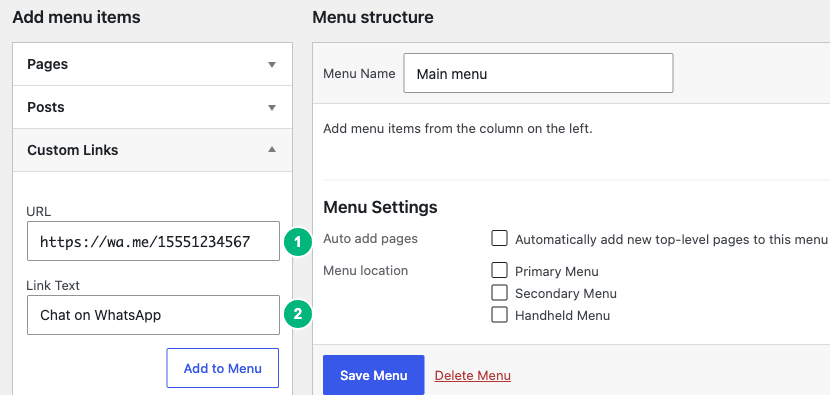
Steps depend on your theme type. WordPress's menu documentation says that with a classic theme you use Appearance > Menus. Block themes from WordPress 6.0 use the Navigation block instead, as the next section shows.
- In your WordPress dashboard, go to Appearance > Menus.
- Open the Custom Links pane.
- Enter your link in URL and "Chat on WhatsApp" in Link Text.
- Click Add to Menu, then click Save Menu.
The fields stay disabled until a menu exists, so create one first if you have none.
WooCommerce with a block theme
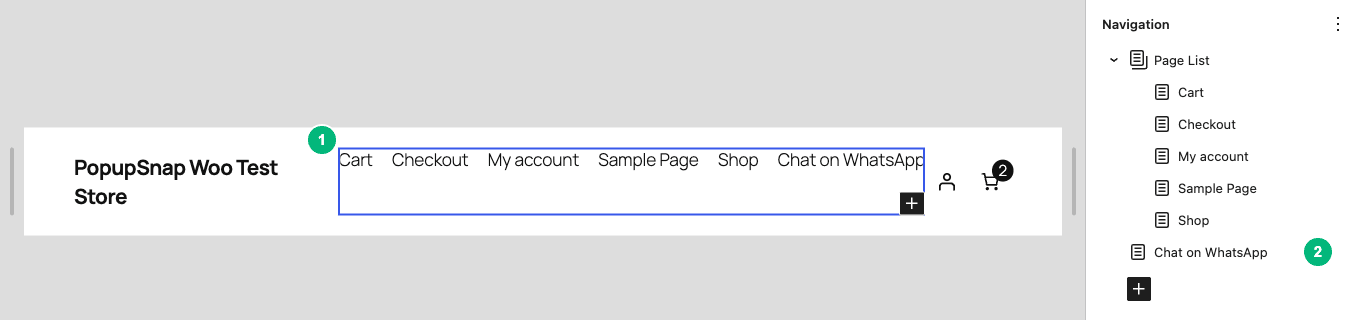
If you do not see Menus under Appearance, you probably use a block theme. WordPress's Navigation block help describes how to add a link as a menu item:
- Go to Appearance > Editor. Click Get started if a welcome dialog appears.
- Click the Navigation block inside the Header on the canvas.
- In the List View, click the add button (Add page on this theme).
- In Add link, paste your link into Search or type URL. Press Submit or Enter once.
- In the block settings, type "Chat on WhatsApp" in Text for the new Page link.
- Click Save.
A second Enter adds an empty item. The new item's text starts as your URL without the scheme. Your URL sits under Link to. Nothing is live until you save. Do not use the sidebar's Navigation entry: it only lists items, and its Edit button opens the Blog Home template. These labels come from the Twenty Twenty-Five theme on WordPress 7.x, so other block themes may differ.
If you use WhatsApp's official Chat on WhatsApp button, WhatsApp's help page says to use it as is and keep it visible. It is currently only available in English.
What are the WhatsApp opt-in rules?
You must get opt-in permission before you message anyone on WhatsApp. Meta's opt-in page, updated June 16, 2026, lists three requirements:
- Clearly state that the person is opting in to receive communication from your business.
- Clearly state your business's name.
- Follow applicable law.
The WhatsApp Business Messaging Policy, last updated September 23, 2026, says you may contact people only if they gave you their mobile number and gave opt-in permission for later messages. You choose the method.
Meta lists SMS, a website, a phone call with an interactive voice response flow, and in person or on paper as supported methods. A checkout checkbox is a website method. A line such as "Send me order updates on WhatsApp from Northline Candles" names the business and states what the person agrees to.
A phone number entered for delivery is not opt-in. Meta also recommends separate opt-in for each message category and clear instructions for opting out. Opt-in rules may differ by country, so check local law. This is not legal advice.
What are the WhatsApp message types?
The WhatsApp Business Platform has four message categories: marketing, utility, authentication and service. Each has a template or window rule, and the Business Platform is charged by category.
| Type | What it is for | Needs a template? |
|---|---|---|
| Marketing | Offers, product suggestions, cart reminders | Yes |
| Utility | Messages after a customer action, such as an order | Yes |
| Authentication | One-time passwords for identity checks | Yes |
| Service | Replies to a customer's incoming message | No, inside the 24-hour window |
Meta's pricing documentation says template messages fall into marketing, utility and authentication, and service messages are non-template.
As of October 31, 2026, that documentation says Meta charges per delivered message, by category and the recipient's country. It does not charge for messages from customers to you. Each business phone number gets 1,000 free service messages a month, and Meta charges from the 1,001st. Meta may change prices only on January 1, April 1, July 1 or October 1, so check its page before you budget.
What is the 24-hour customer service window?
The 24-hour customer service window opens when a customer messages you and resets with each new message from them. Inside it, on the Business Platform, you may reply without a template. After it closes, you may send only approved message templates.
The WhatsApp Business Messaging Policy also says that on the Business Platform you may start a conversation only with an approved template. Meta can review, approve, pause or reject any template. If you use automation inside the window, the policy requires clear escalation paths, such as a handoff to a human agent, a phone number or an email.
Why doesn't my WhatsApp link work?
Most failures come from the number format, the menu entry or the pre-filled text. Check these in order.
The link opens the wrong chat or fails. The number probably still has a zero, brackets, dashes or a + sign. WhatsApp's help page says to omit zeroes, brackets and dashes, and its "don't use" example includes a + sign. Use digits only, starting with the country code.
Shopify does not accept the link. Shopify shows no error text. For a bad URL, the dropdown shows only "No results" and Enter does not commit it. The Link field then clears when you click away, while Label stays. Check the link for typos and paste it again.
The pre-filled text looks wrong. WhatsApp's link format needs URL-encoded text, so each space becomes %20, as in the example above. Test the link on your phone before you publish it.
A block theme shows no menu item. WordPress says a menu made in the Site Editor does not appear on your site by itself. Add a Navigation block to a template part, such as the Header, and link it to the menu, as the Site Editor navigation help explains.
What happens if customers block or report you?
Meta can limit your sending. Its opt-in page says people can block or report a business, and that Meta's systems rate limit businesses whose quality is low for a sustained period.
Low quality usually follows from messaging people who did not expect it. Ask clearly, send only what people agreed to, and make opting out easy.
Make your store's WhatsApp link
Enter your number and an optional first message, and the generator returns a click-to-chat link and a QR code. It is free, needs no signup, and runs in your browser. The generator is made by Grovlix, the publisher of this blog.
Frequently asked questions
Do I need the WhatsApp Business Platform to use WhatsApp in my store?
No. A click-to-chat link works without it, and the WhatsApp Business app is built for small business owners. You need the WhatsApp Business Platform when you want to send messages automatically, such as order updates, because it uses approved message templates, message categories and per-message pricing. Start with a link and move up when volume grows.
Can I message customers who gave me their number at checkout?
Only if they also opted in to receive WhatsApp messages from your business. Meta's policy says you may contact people on WhatsApp only if they gave you their mobile number and gave opt-in permission for later messages. A phone number entered for delivery is not opt-in. Add a clear checkbox that names your store and says the customer will get WhatsApp messages.
Does WhatsApp charge businesses for messages?
On the WhatsApp Business Platform, yes. Since July 1, 2025, Meta charges per delivered message, by message category and the recipient's country, and not for messages that customers send you. Meta's developer pricing documentation says that since October 1, 2026, service messages beyond the first 1,000 a month per business phone number are charged. Check Meta's current rates before you budget.
Is the pre-filled message in a WhatsApp link sent automatically?
No. The pre-filled message appears in the text box of the chat, and the customer still has to tap send. This is how WhatsApp's click-to-chat links work, so you cannot send a message on someone's behalf with a link. Use the text to give you context, such as the page the customer came from.
How long can I reply to a customer without a template?
On the Business Platform, for 24 hours after the customer's last message. Meta's policy says you may reply without a message template within the 24-hour customer service window, which opens and resets with each message from the customer. After the window closes, you may send only approved message templates. On the Business Platform, starting a conversation always needs an approved template.
Amira Saad is a SaaS and AI product designer at Grovlix, where she works on the UX, UI and conversion rate optimization of PopupSnap, InstaFeed and PopAutomate. She writes about what makes online stores convert, from product pages to social proof.